Theme
Codex Installation and Configuration Guide
Windows Version Guide
System Requirements
Windows 10 or Windows 11
Node.js 22+
npm 10+
Network connection
Installation Steps
Prerequisites!!! Install Git Bash. Visit Git - Downloads to download the version for your operating system, then click "Next" repeatedly to complete the installation.
1. Install Node.js Visit the Node.js official website to download and install the latest LTS version.
2. Install codex Open Command Prompt (CMD) or PowerShell and run:
npm install -g @openai/codex3. Verify Installation Open Command Prompt (CMD) or PowerShell and run:
codex --versionConfigure API
1. Get Auth Token Visit www.kkiai.com and perform the following:
Click Console → API Token page
Click Add Token
Token name can be anything
Quota recommendation: Set to Unlimited
Keep other options at default
2. Configuration Files
Important Note: Replace
sk-xxxbelow with your actual API key generated at www.kkiai.com! Important Note: Replacesk-xxxbelow with your actual API key generated at www.kkiai.com! Important Note: Replacesk-xxxbelow with your actual API key generated at www.kkiai.com!
- Navigate to the
.codexfolder in your user directory, for example:C:\Users\testuser\.codex. (Note: If you cannot see this directory, you need to enable "Show hidden items" in Windows File Explorer first.)
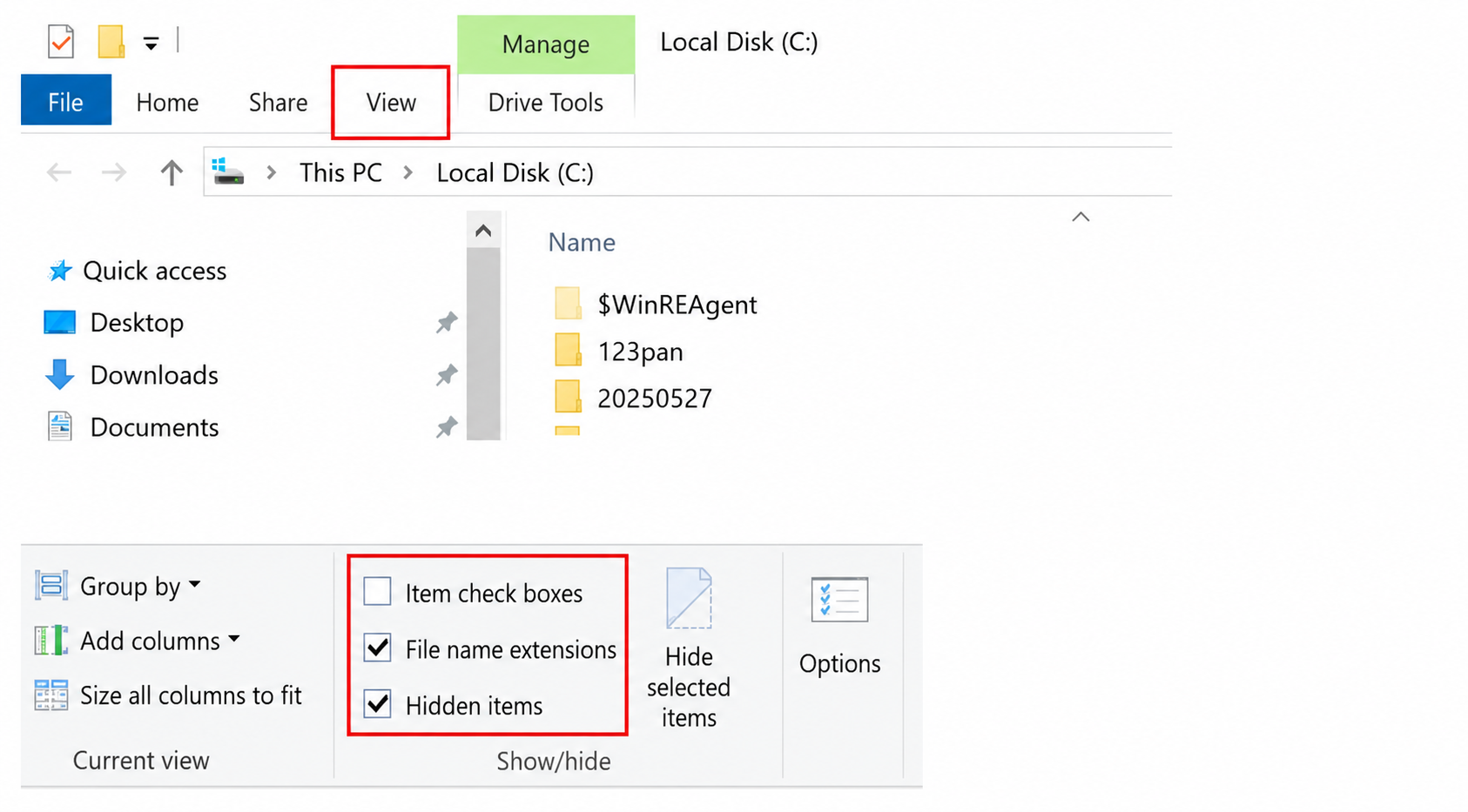
- If the
.codexfolder does not exist, create it manually, then create two files inside it:config.tomlandauth.json.
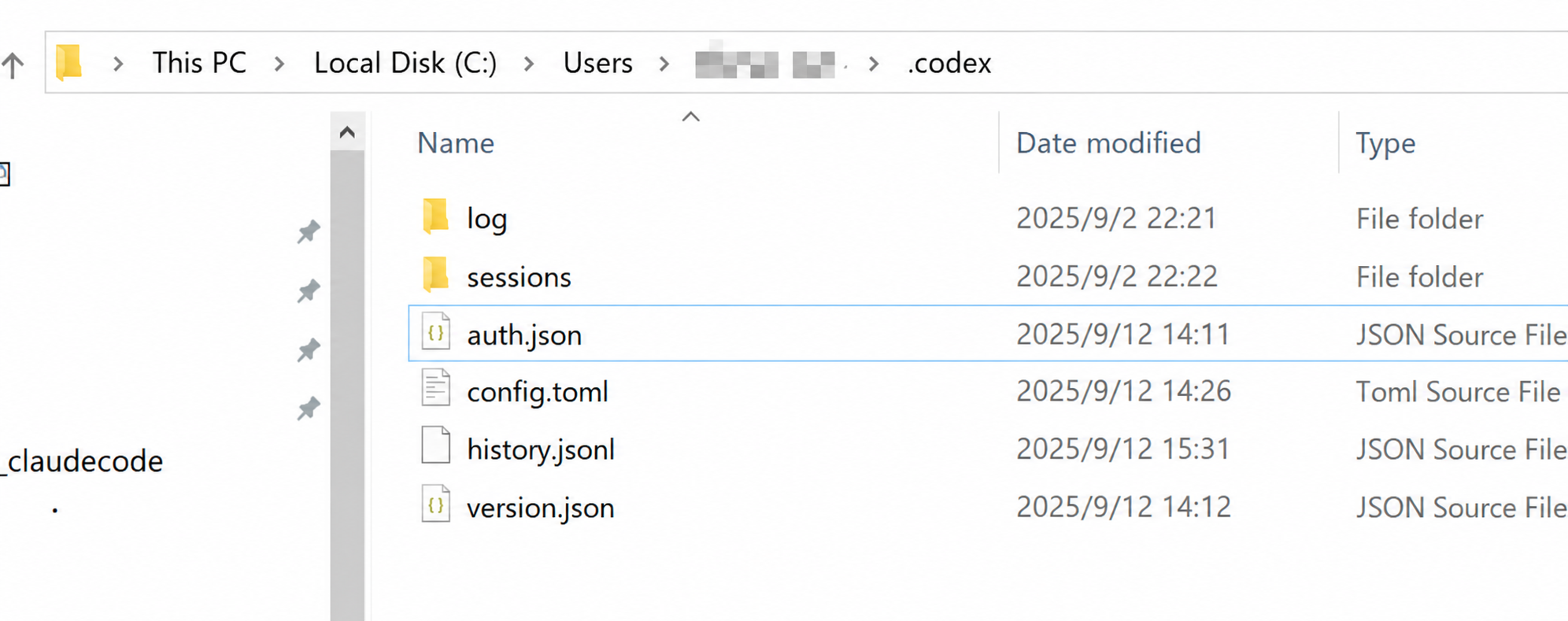 3. Fill in the configuration (replace
 sk-xxx with your actual SK).
a. Configuration in auth.json:
{"OPENAI_API_KEY": "sk-xxx"}b. Configuration in config.toml (you can paste the content below directly): model_reasoning_effort optional values are high, medium, low, representing the model's thinking effort level (high, medium, low) respectively.
model_provider = "api111"
model = "gpt-5.6-sol"
model_reasoning_effort = "high"
disable_response_storage = true

[model_providers.api111]
name = "api111"
base_url = "https://www.kkiai.com/v1"
wire_api = "responses"
requires_openai_auth = true
Start codex
Restart the terminal! Restart the terminal! Restart the terminal! Then navigate to your project directory:
cd your-project-folderRun the following command to start:
codex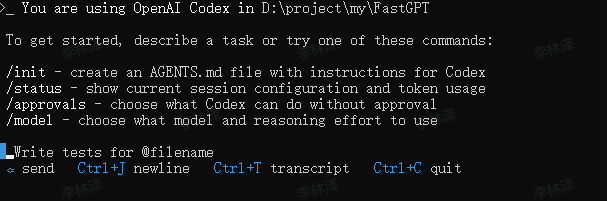
VSCode Extension codex
After completing the configuration above, search for and install codex in the VSCode extension marketplace.
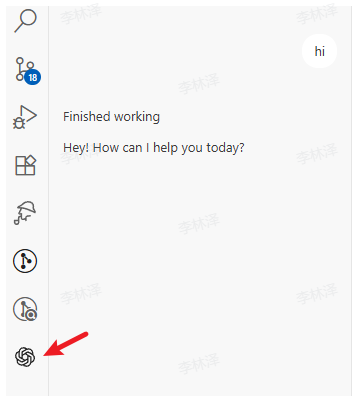
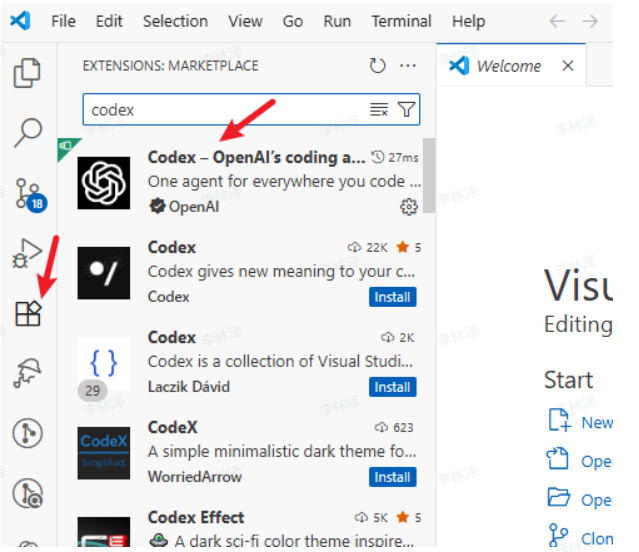 After installation, it will appear in the sidebar.
Mac Version Guide
System Requirements
macOS 12 or higher
Node.js 22+
npm 10+
Network connection
Installation Steps
1. Install Node.js
Method 1: Visit the Node.js official website to download and install the latest LTS version.
Method 2: Use Homebrew (recommended)
# If Homebrew is not yet installed, run this command first
/bin/bash -c "$(curl -fsSL https://raw.githubusercontent.com/Homebrew/install/HEAD/install.sh)"

# Install Node.js
brew install node
2. Install codex Open Terminal and run (may require sudo):
npm install -g @openai/codex3. Verify Installation Open Terminal and run:
codex --versionConfigure API
1. Get Auth Token Visit www.kkiai.com and perform the following:
Click Console → API Token page
Click Add Token
Token name can be anything
Quota recommendation: Set to Unlimited
Keep other options at default
2. Configuration Files
Important Note: Replace
sk-xxxbelow with your actual API key generated at www.kkiai.com! Important Note: Replacesk-xxxbelow with your actual API key generated at www.kkiai.com! Important Note: Replacesk-xxxbelow with your actual API key generated at www.kkiai.com!
- Create the directory and files:
mkdir -p ~/.codex
touch ~/.codex/auth.json
touch ~/.codex/config.toml- Edit the
auth.jsonfile:
vi ~/.codex/auth.jsonPress i to enter insert mode, paste the following content (replace sk-xxx with your key), then press ESC, type :wq and press Enter to save and exit.
{"OPENAI_API_KEY": "sk-xxx"}- Edit the
config.tomlfile:
vi ~/.codex/config.tomlPress i to enter insert mode, paste the following content, then press ESC, type :wq and press Enter to save and exit.
model_provider = "api111"
model = "gpt-5.6-sol"
model_reasoning_effort = "high"
disable_response_storage = true

[model_providers.api111]
name = "api111"
base_url = "https://www.kkiai.com/v1"
wire_api = "responses"
requires_openai_auth = true
Start codex
Restart the terminal! Restart the terminal! Restart the terminal! Then navigate to your project directory:
cd your-project-folderRun the following command to start:
codex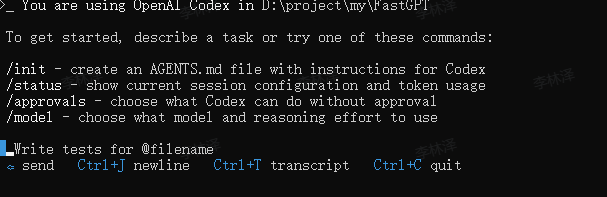
VSCode Extension codex
After completing the configuration above, search for and install codex in the VSCode extension marketplace.
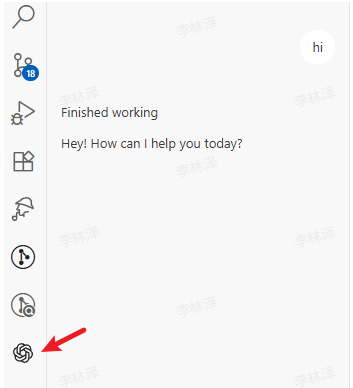
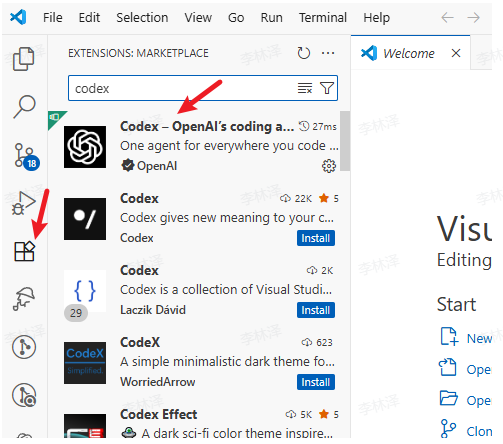 After installation, it will appear in the sidebar.
Linux Version Guide
System Requirements
Major Linux distributions (Ubuntu 20.04+, Debian 10+, CentOS 7+, etc.)
Node.js 22+
npm 10+
Network connection
Installation Steps
1. Install Node.js
Ubuntu/Debian
sudo apt update
curl -fsSL https://deb.nodesource.com/setup_lts.x  |
sudo -E bash -
sudo apt-get install -y nodejs
CentOS/RHEL/Fedora
# Use dnf (Fedora) or yum (CentOS/RHEL)
sudo dnf install nodejs npm
# or
sudo yum install nodejs npm
Arch Linux
sudo pacman -S nodejs npm2. Install codex Open Terminal and run:
sudo npm install -g @openai/codex3. Verify Installation Open Terminal and run:
codex --versionConfigure API
1. Get Auth Token Visit www.kkiai.com and perform the following:
Click Console → API Token page
Click Add Token
Token name can be anything
Quota recommendation: Set to Unlimited
Keep other options at default
2. Configuration Files
Important Note: Replace
sk-xxxbelow with your actual API key generated at www.kkiai.com! Important Note: Replacesk-xxxbelow with your actual API key generated at www.kkiai.com! Important Note: Replacesk-xxxbelow with your actual API key generated at www.kkiai.com!
- Create the directory and files:
mkdir -p ~/.codex
touch ~/.codex/auth.json
touch ~/.codex/config.toml- Edit the
auth.jsonfile:
vi ~/.codex/auth.jsonPress i to enter insert mode, paste the following content (replace sk-xxx with your key), then press ESC, type :wq and press Enter to save and exit.
{"OPENAI_API_KEY": "sk-xxx"}- Edit the
config.tomlfile:
vi ~/.codex/config.tomlPress i to enter insert mode, paste the following content, then press ESC, type :wq and press Enter to save and exit.
model_provider = "api111"
model = "gpt-5.6-sol"
model_reasoning_effort = "high"
disable_response_storage = true

[model_providers.api111]
name = "api111"
base_url = "https://www.kkiai.com/v1"
wire_api = "responses"
requires_openai_auth = true
Start codex
Restart the terminal! Restart the terminal! Restart the terminal! Then navigate to your project directory:
cd your-project-folderRun the following command to start:
codex
VSCode Extension codex
After completing the configuration above, search for and install codex in the VSCode extension marketplace.
After installation, it will appear in the sidebar.
Frequently Asked Questions
If you encounter errors, troubleshoot using the following steps:
- Confirm that your API Key was created correctly: select Unlimited quota, do not restrict the model, and select codex channel - gpt for the group.
For more codex configuration and usage details, please refer to the codex official guide.